Loper | Web Games Embedding
Your Loper web games are your team's modern marketing resource for engaging students throughout the funnel. Use the documentation below to embed your web games in landing pages across your website dependent across common content management systems and CRMs.
Quick Start
Copy and paste the code snippet below to quickly embed one of your Loper web games onto your website. Adjust the parameters in the URL structure according to the one-sheeter supplied by Loper for your institution's specific web game URLs.
<iframe
  src="https://wq.getloper.com/{SCHOOL_ID}/{GAME_TYPE}/{SEQUENCE}?embed=true&utm_source=your-page&utm_medium=embed"
  width="100%"
  height="700"
  frameborder="0"
  allow="clipboard-write"
  style="border: none; border-radius: 12px; max-width: 480px;"
></iframe>
URL Structure
The following parameters are used within your web games URL structure. Adjust them according to the one-sheeter provided by Loper and the game you are attempting to embed.
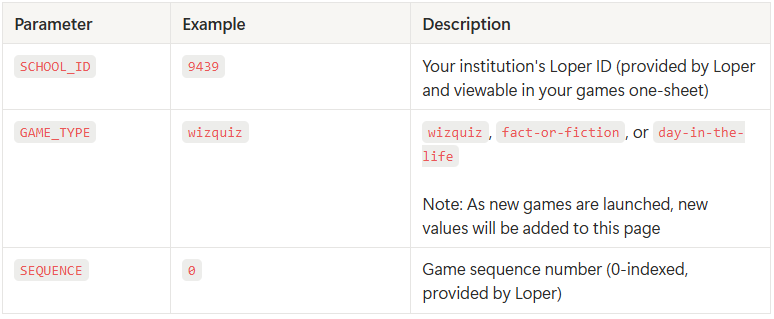
Query Parameters

Game Modes
Loper has multiple versions of your game available dependent on your use case. The content across game modes is the same; only the surrounding mechanics are adjusted.
Standard Mode (Default)
The standard mode uses a contact form to collect a students information at the front of the game, and their email address and opt-in consent at the end of the game before receiving their result. It can be used in circumstances where you wish to capture an individual student's game results directly in your CRM.
https://wq-dev.getloper.com/5050/day-in-the-life/1?embed=trueFormless Mode
The formless mode bypasses the contact form in standard mode to allow students to engage with the game without providing information and email. It does not capture a student's identifying information, and can be used in circumstances where information is more important than data capture such as in-person events and high school visits.
https://wq-dev.getloper.com/5050/day-in-the-life/1?embed=true&mode=formless
Ready to Use Code Snippets
Copy and paste any of these into your CMS. Each snippet below uses a live demo URL so you can paste as-is and watch the game load — then swap the src URL with the one provided in your Loper games one-sheet.
Why snippets sometimes appear blank: If you paste a snippet and the game doesn't appear, check that the src URL actually loads a game in a browser tab. A broken or placeholder URL renders an empty iframe with zero height — especially noticeable with the popover/modal snippet, which will fail to open if the inner iframe can't size itself.
Basic Inline Embed
The simplest option. Paste directly into any HTML block.
<iframe
  src="https://wq-dev.getloper.com/5050/day-in-the-life/1?embed=true&utm_source=admissions&utm_medium=embed"
  width="100%"
  height="700"
  frameborder="0"
  allow="clipboard-write"
  style="border: none; border-radius: 12px; max-width: 480px;"
></iframe>
Centered Responsive Embed
Centers the game on the page with consistent spacing. Works well on content pages.
<div style="max-width: 480px; margin: 2rem auto; padding: 0 1rem;">
  <iframe
    src="https://wq-dev.getloper.com/5050/day-in-the-life/1?embed=true&utm_source=campus-life&utm_medium=embed"
    width="100%"
    height="700"
    frameborder="0"
    allow="clipboard-write"
    style="border: none; border-radius: 12px;"
  ></iframe>
</div>
Popover // Modal
A button that opens the game in a full-screen overlay. Great for CTAs without dedicating page real estate.
<!-- Trigger Button -->
<button onclick="document.getElementById('loper-modal').style.display='flex'"
style="background: #503ef1; color: white; border: none; padding: 14px 28px;
border-radius: 8px; font-size: 16px; font-weight: 600; cursor: pointer;">
Play Our Campus Quiz
</button>
<!-- Modal Overlay -->
<div id="loper-modal" style="display:none; position:fixed; inset:0; z-index:9999;
background:rgba(0,0,0,0.6); align-items:center; justify-content:center;"
onclick="if(event.target===this)this.style.display='none'">
<div style="position:relative; width:100%; max-width:480px; margin:1rem;">
<button onclick="document.getElementById('loper-modal').style.display='none'"
style="position:absolute; top:-12px; right:-12px; background:white; border:none;
border-radius:50%; width:32px; height:32px; font-size:18px; cursor:pointer;
box-shadow:0 2px 8px rgba(0,0,0,0.15); z-index:1;">
✕
</button>
<iframe
src="https://wq-dev.getloper.com/5050/day-in-the-life/1?embed=true&mode=formless&utm_source=popover&utm_medium=embed"
width="100%" height="700" frameborder="0" allow="clipboard-write"
style="border:none; border-radius:12px;">
</iframe>
</div>
</div>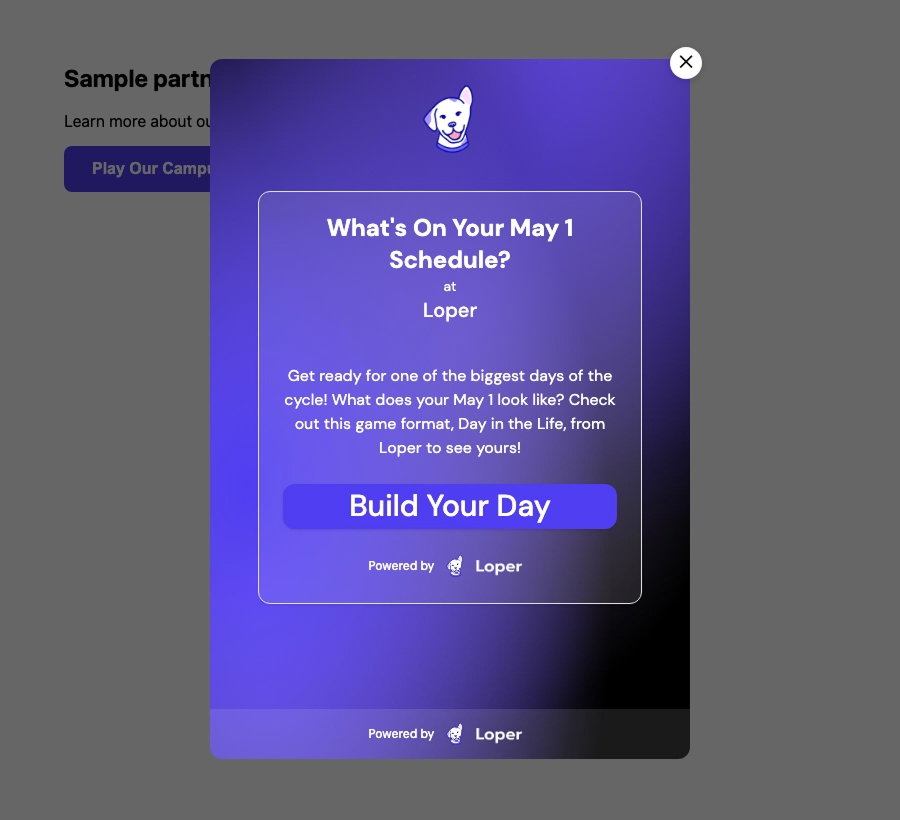
Full-Page // Landing Page
Game fills the viewport — ideal for dedicated landing pages linked from emails or social. No surrounding content needed.
<div style="display:flex; align-items:center; justify-content:center;
            min-height:100vh; background:#f5f5f5; padding:1rem;">
  <iframe
    src="https://wq-dev.getloper.com/5050/day-in-the-life/1?embed=true&mode=formless&utm_source=landing-page&utm_medium=embed"
    width="100%" height="700" frameborder="0" allow="clipboard-write"
    style="border:none; border-radius:16px; max-width:480px;
           box-shadow:0 8px 32px rgba(0,0,0,0.12);">
  </iframe>
</div>
Mobile-Optimized Container
Note: All Loper games are already responsive inside the iframe, but this ensures the container holding the game behaves well on mobile too.
<style>
  .loper-embed-container {
    max-width: 480px;
    margin: 0 auto;
    padding: 0 1rem;
  }
  .loper-embed-container iframe {
    width: 100%;
    height: 700px;
    border: none;
    border-radius: 12px;
  }
  @media (max-width: 480px) {
    .loper-embed-container {
      padding: 0;
    }
    .loper-embed-container iframe {
      border-radius: 0;
      height: 100vh;
      height: 100dvh;
    }
  }
</style>
<div class="loper-embed-container">
  <iframe
    src="https://wq-dev.getloper.com/5050/day-in-the-life/1?embed=true&utm_source=mobile-page&utm_medium=embed"
    frameborder="0" allow="clipboard-write">
  </iframe>
</div>
Dynamic Height (with postMessage)
Listens for resize events from the game so the iframe height adjusts automatically as content changes. Optional — a fixed height of 700px works for all game types.
<iframe id="loper-game"
  src="https://wq-dev.getloper.com/5050/day-in-the-life/1?embed=true&utm_source=dynamic&utm_medium=embed"
  width="100%" height="700" frameborder="0" allow="clipboard-write"
  style="border:none; border-radius:12px; max-width:480px;">
</iframe>
<script>
window.addEventListener('message', function(event) {
  if (event.origin !== 'https://wq.getloper.com') return;
  if (event.data.type === 'loper:resize') {
    document.getElementById('loper-game').style.height = event.data.height + 'px';
  }
});
</script>
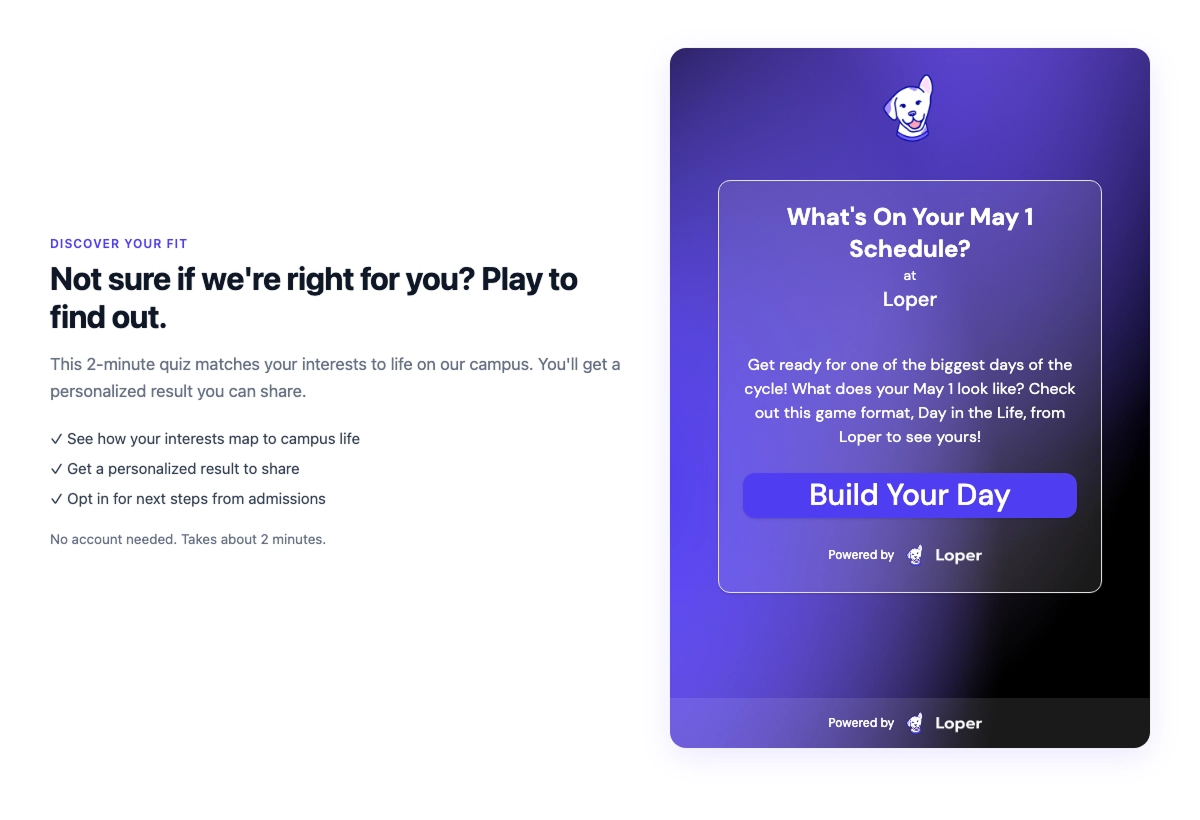
Two-Column (Copy + Game)
Headline and bullet points on the left, game on the right. This is the pattern most admissions landing pages use — it gives you room to frame the quiz with supporting copy instead of dropping it in cold. In the code snippet, ignore the illustrative text on the left-hand-side div, or replace it in the grid with the copy for your institution.
On narrow screens the two columns should stack. Most CMS themes handle this automatically; if yours doesn't, add a @media (max-width: 900px) rule that sets
grid-template-columns: 1fr
<div style="max-width: 1100px; margin: 0 auto; padding: 3rem 2rem;
            display: grid; grid-template-columns: 1fr 480px; gap: 3rem; align-items: center;">
  <div>
    <p style="text-transform:uppercase; font-size:.75rem; font-weight:600;
              letter-spacing:.08em; color:#503ef1; margin-bottom:.5rem;">
      Discover Your Fit
    </p>
    <h2 style="font-size:2rem; font-weight:700; letter-spacing:-.02em;
               margin:0 0 1rem; color:#101828;">
      Not sure if we're right for you? Play to find out.
    </h2>
    <p style="color:#667085; font-size:1.05rem; line-height:1.6; margin:0 0 1.5rem;">
      This 2-minute quiz matches your interests to life on our campus.
      You'll get a personalized result you can share.
    </p>
    <ul style="list-style:none; padding:0; margin:0 0 1.5rem; display:flex;
               flex-direction:column; gap:.75rem; color:#344054; font-size:.95rem;">
      <li>✓ See how your interests map to campus life</li>
      <li>✓ Get a personalized result to share</li>
      <li>✓ Opt in for next steps from admissions</li>
    </ul>
    <p style="font-size:.85rem; color:#667085;">
      No account needed. Takes about 2 minutes.
    </p>
  </div>
  <iframe
    src="https://wq-dev.getloper.com/5050/day-in-the-life/1?embed=true&utm_source=two-column&utm_medium=embed"
    width="100%" height="700" frameborder="0" allow="clipboard-write"
    style="border:none; border-radius:16px;
           box-shadow:0 8px 32px rgba(80,62,241,.12);">
  </iframe>
</div>
Lazy-Load on Scroll
Defers loading the iframe until it scrolls into view. Useful if you want to place the game lower on a long page without triggering a network request for every pageview — helpful for page-speed scores and IT teams concerned about performance.
<div id="loper-embed" style="max-width:480px; margin:2rem auto; min-height:700px;
                              display:flex; align-items:center; justify-content:center;
                              background:#EEEDFC; color:#503ef1; border-radius:12px;
                              font-size:.9rem;">
  Loading quiz…
</div>
<script>
  (function() {
    const container = document.getElementById('loper-embed');
    const src = 'https://wq-dev.getloper.com/5050/day-in-the-life/1?embed=true&utm_source=lazy&utm_medium=embed';
    const load = () => {
      const iframe = document.createElement('iframe');
      iframe.src = src;
      iframe.width = '100%';
      iframe.height = '700';
      iframe.frameBorder = '0';
      iframe.allow = 'clipboard-write';
      iframe.style.cssText = 'border:none; border-radius:12px; display:block;';
      container.replaceChildren(iframe);
      container.style.cssText = 'max-width:480px; margin:2rem auto;';
    };
    if ('IntersectionObserver' in window) {
      const obs = new IntersectionObserver((entries) => {
        entries.forEach(e => {
          if (e.isIntersecting) { load(); obs.disconnect(); }
        });
      }, { rootMargin: '200px' });
      obs.observe(container);
    } else {
      load();
    }
  })();
</script>
Platform Setup Guides
Across common channels such as CRM portals, website systems, find quick setup guides and instructions below.
Slate (Technolutions)
Portal Pages (via Static Content Widget)
The Static Content widget is the recommended way to embed HTML in Slate portals. It lives in the Palette of the Dynamic Layout Editor.
- Go to Database > Portals in Slate navigation
- Select your portal and open its summary page
- Go to the Views section and edit an existing view (or create a new one)
- In the Layout Editor, click New Row and choose a column layout
- From the Palette on the right side, select Static Content
- Give the widget a name (e.g., "Loper Game")
- In the WYSIWYG editor, click the Source button (
< >) to switch to raw HTML mode - Paste your embed snippet, click OK, then Save
- Drag the widget to the desired position in your layout
Key detail: You must click the Source button in the WYSIWYG editor to paste raw HTML. If you paste the iframe code directly into the WYSIWYG, it will display as text instead of rendering. The Static Content widget supports HTML, CSS, and JavaScript.
Slate Dashboard (For internal testing)
To test the internal embed in a Slate portal, add a Static Content Block within the report, click Source in the WYSIWYG, paste your iframe snippet, and save. This is useful information for internal stakeholders to preview the game before placing it on a student-facing portal.
Slate Communications (Emails)
Iframes do not render effectively in emails. It's recommended to use a CTA or image-based button to build engaging emails driving toward your games. The following tactics are common in email-based campaigns driving toward your game, either for search marketing or lead nurture.
- Building basic landing pages on your website using the full page // landing page method and directing students toward your domain.
- Creating multi-message campaigns leveraging the content with the game, such as:
- Building email content around the game, such as a 4-message email featuring a question in your game, the available choices, and a CTA driving the student to complete the game
- Building email content featuring each personality segment that concludes your game
Wordpress
- Edit the page where you want the game
- Click + to add a block → search for Custom HTML
- Paste your embed snippet into the HTML block
- Click Preview to verify the game loads
- Publish or update the page
Do not use the "Embed" block — it doesn't support custom iframe attributes. Use Custom HTML specifically.
Security plugins
- Wordfence: Its WAF can block iframe code pasted into editors. If blocked, temporarily enable Learning Mode in the firewall settings, save the page, then re-enable protection
- Sucuri: Check the Sucuri dashboard under Firewall > Settings to whitelist embed patterns
- iThemes / Solid Security: May flag iframe code as suspicious input — add an exception
- WordPress Multisite: Even admin users may lack
unfiltered_htmlcapability. A Super Admin must grant this
Drupal
Option A: Full HTML Text Format
- Edit the page or create a new content node
- In the body field, switch the Text format dropdown to Full HTML (not "Basic HTML" or "Restricted")
- Click the Source editing button in the CKEditor 5 toolbar (if you don't see it, ask your site admin to enable "Source editing" in the toolbar configuration at Admin > Configuration > Content authoring > Text formats > Full HTML > CKEditor 5 toolbar)
- Paste your embed snippet
- Save the node
Drupal's default "Basic HTML" text format strips <iframe> tags. You must use "Full HTML" or ask your site admin to addiframeto the allowed tags at Admin > Configuration > Content authoring > Text formats and editors. Add<iframe src width height frameborder style allow>to the allowed tags list.
Only users with the unfiltered_html capability can save iframe code. If you see the iframe disappear after saving, your account may not have significant permissions. Checkwith your site admin.
Option B: Custom Block
- Go to Structure > Block Layout > Add custom block
- Set text format to Full HTML
- Paste the embed snippet
- Place the block in the desired region on target pages
Omni CMS
- Open the page in Edit mode and click the green editable region button (e.g., "Main Content")
- In the WYSIWYG editor, click the Source Code (
<>) button to switch to HTML view - Paste your embed snippet at the desired location
- Switch back to Design view to confirm rendering
- Save and submit for approval (if your workflow requires it)
Source code editing is restricted to Level 9 and 10 users (administrators) by default. If you don't see the Source Code button, ask your Omni CMS admin to grant source code access to your user level.
Snippets Library: For multi-page embeds, ask your Omni CMS admin to save the embed code as a Snippet (Content > Snippets) or Asset (Content > Assets). Other editors can then insert it via the puzzle piece icon in the toolbar without touching HTML.
Squarespace
- Edit the page and click + Add Block
- Select Code from the block menu (requires Business plan or higher)
- Paste your embed snippet
- Uncheck Display Source if prompted
- Save and preview
IT // Security Requirements
If your site sets a Content-Security-Policy header, add the snippet below. The game sets no cookies on your domain. Any storage is scoped to Loper's internal games server. On browsers with strict third-party storage policies (Safari ITP, Firefox ETP), the game automatically falls back to in-memory storage — no user-facing impact.
frame-src https://wq.getloper.com
Troubleshooting
- Iframe shows blank or "refused to connect"
- Check CSP: Your Content-Security-Policy may be blocking the frame. Add
frame-src <https://wq.getloper.com>. - Check X-Frame-Options: If your CMS sets
X-Frame-Options: DENY, the iframe may be blocked by your page's policy. - Check ad blockers: Some browser extensions block third-party iframes. Test in an incognito window.
- Check CSP: Your Content-Security-Policy may be blocking the frame. Add
- Game loads but looks broken or cut off
- Ensure the iframe has
width="100%"andheight="700"at minimum. - Check that no parent CSS is constraining the iframe (e.g.,
overflow: hiddenon a container with a fixed height). - On mobile, ensure the container isn't capped at a narrow width.
- Ensure the iframe has
- Game doesn't track as an embedded play
- Verify
?embed=trueis in the iframesrcURL. - Verify
utm_sourceandutm_medium=embedare present. - Data syncs to your dashboard within 24-48 hours.
- Verify
- Drupal strips the iframe tag
- Switch the Text format to "Full HTML" before pasting. Drupal's default text formats strip iframe tags for security.
Frequently Asked Questions
Can we embed on multiple pages?
Yes. Each placement gets its own embed code with unique UTM params for per-page reporting.
Do students need a Loper mobile appaccount?
No. No login or app download required.
Will this slow down our page?
No. The game loads in an isolated iframe and doesn't affect your page's performance.
Can we remove it later?
Yes. Remove the HTML snippet from your CMS. Nothing to uninstall.
How quickly do leads appear?
Students who share their email appear in your lead pipeline within 24 hours.
